Get Shadowrocket for iPhone and iPad from the App Store. For Mac, Windows, Android and Linux, choose an installer here that matches your device architecture.
Current version v2.2.92·Free for Mac, Windows, Android and Linux
Where to get it
iPhone / iPad: App Store Other platforms: this site
Current package version
v2.2.92
Two pricing tiers
iPhone / iPad $2.99 one-time Mac / Windows / Android / Linux free
Developer
Shadow Launch Technology Limited
App Store App ID
932747118
01 · Choose by device
Download for all platforms
The first-screen button shows an option based on your current device. To get an installer for another device, use the button for that platform below. Choose Mac downloads by chip and Linux downloads by distribution; do not rely on the bitness in the filename alone to determine compatibility.
iPhone / iPad
One-time $2.99 purchase. Mac, Windows, Android and Linux versions are free. Refer to the App Store page for iOS / iPadOS system requirements.
Open the product page on the device where you plan to install the app. Check the app name, developer and compatibility before confirming the price shown in the store. If a cloud icon appears on the button, you can usually download it again from the current account's purchase history without going through payment again.
Free. The iPhone / iPad version is a one-time $2.99 App Store purchase. Installers for macOS 12 and later are available as separate Apple Silicon and Intel .dmg files.
If the installer window provides an Applications shortcut, drag Shadowrocket into that folder, then open it from Applications. Do not use the disk image window as the usual place to launch the app. If the system says it cannot verify the developer, check the download source first, then see Installation prompts.
Not sure which to choose? Open About This Mac and check Chip or Processor.
Windows
Free. The iPhone / iPad version is a one-time $2.99 App Store purchase. This site provides a 64-bit .exe installer for x64 systems.
Go to Settings → System → About and check System type. Confirm that the operating system is 64-bit and uses an x64 processor before running the downloaded installer. If the system says the program is not supported on this device, check the architecture first; do not treat a compatibility error as a SmartScreen warning.
Free. The iPhone / iPad version is a one-time $2.99 App Store purchase. This site provides an arm64 .apk for Android phones and tablets with the corresponding architecture.
Many recent devices use arm64; check your device specifications if you are unsure. We recommend opening this page in the system browser and waiting for the download to finish, then opening the file from the browser's download history. If the installer is reported as damaged or cannot be parsed, download it again and check the architecture rather than repeatedly changing installation permissions.
Free. The iPhone / iPad version is a one-time $2.99 App Store purchase. The installers below are for x86_64; Debian-family package filenames use amd64 to denote this architecture.
Choose .deb for Debian or Ubuntu, and .rpm for Fedora or openSUSE. Install it using your current distribution's package manager. Other distributions can try AppImage (x86_64), subject to runtime requirements. Before upgrading, check which format you used previously to avoid retaining launch entries for multiple formats.
Desktop and Android installers do not have code signatures that the system can verify, so they may be blocked during installation or first launch. First check the source in your browser's download history and confirm that the file came from the relevant button on this page. Then identify whether the prompt is about source or reputation, an architecture mismatch, or an explicit threat report. The table below covers handling an individual app; you do not need to disable protection for the entire device.
Installation prompts and steps by platform
Platform
What to do
Check afterward
Windows
If SmartScreen displays “Windows protected your PC,” confirm the source, make sure there is no threat report, and check that device policy permits it before selecting More info → Run anyway.
If no option to run appears, do not change global security settings. If the device is managed by your organization, ask an administrator to review the warning.
macOS
If you see “cannot verify the developer,” dismiss the prompt, then find the app under System Settings → Privacy & Security and click Open Anyway. On macOS 12, check System Preferences → Security & Privacy → General. If the system says the app is damaged, delete the old copy and download the image for the correct architecture again. Only after confirming the source and installation location, and ruling out file damage or a security alert, consider running xattr -cr /Applications/Shadowrocket.app for that app in Terminal.
This command clears extended attributes for the specified app; it does not repair damaged files. Do not run it on the downloads folder or the entire Applications folder. If the prompt persists, stop the installation.
Android
If the system asks for authorization, open the Install unknown apps setting for the relevant browser. Enable Allow from this source only for the source actually used to open the .apk. Setting names vary by system.
After installation, you can return to the same setting and disable installation permission for that browser. If a security scan explicitly reports a risk, stop and do not ignore the alert.
Linux
In the downloads directory, add execute permission to the AppImage, for example chmod +x ./Shadowrocket.AppImage. On Debian or Ubuntu, install a .deb with sudo apt install ./Shadowrocket.deb. These are example filenames; replace them with the actual downloaded filename before running the command.
AppImage can be launched as a regular user. If the package manager reports an architecture mismatch or missing dependencies, check the distribution, architecture and error details rather than forcing dependency overrides.
The system prompt asking whether to run a file and the app's first request to create a VPN configuration are two separate steps. When a permission request appears, first check the app name and the action in progress. If installation is complete but you have not entered your own server details, you do not need to download the client again.
03 · iPhone / iPad
App Store and account region
This section applies only to iPhone and iPad. The country or region of your Apple ID determines the App Store storefront; changing the device language or regional format does not change the storefront used for purchases. Shadowrocket is not available in the mainland China store. If the product link on this site shows a preview but your device says it is unavailable in your current country or region, check the region of the purchasing account first. Do not rely on search results alone to decide whether you have found the same app.
Check the account used for purchases
On your device, go to Settings → Apple ID (your name at the top) → Media & Purchases → View Account → Country/Region. The account signed in to the device may differ from the account used for Media & Purchases; check the latter. If asked to verify your identity, complete the process in the system interface, then check the country or region shown.
Review the system options for changing region
If needed, check Change Country or Region on the same page and review the listed requirements. Account balance, pending items, active services and payment methods may affect the process; follow the system prompts to determine whether you can complete it. If you are only trying to recover an app installed previously, first check the original purchase account using the purchase recovery steps, then decide whether you need to change the region settings.
04 · Product details and interface reference
Verify Shadowrocket
For iPhone and iPad, first check the developer, icon and App ID in the App Store. A Chinese nickname or a similar-looking icon is not enough to confirm identity. For Mac, Windows, Android and Linux, use the relevant button on this page; package paths on this site begin with /dl/shadowrocket/.
Developer: Check the developer name on the product page. It should be Shadow Launch Technology Limited. Do not mistake an app subtitle or description in search results for the developer field.
App icon: Compare it with the official icon below: a rocket with a blue-purple outline on a white background. Use the icon as an aid, and also verify the developer and App ID.
App ID: Check for id932747118 at the end of the product page URL. If a search shows a free listing with the same name, it is not the product referenced here. A redownload icon shown for a purchased account does not mean the product has become free.
Check pricing by platform as well: the iPhone / iPad version is a one-time $2.99 purchase in the US App Store; Mac, Windows, Android and Linux versions are free. When opening a download from your browser's history, make sure the installer came from this site's path, not a search result, forwarded attachment or another page with a file of the same name.
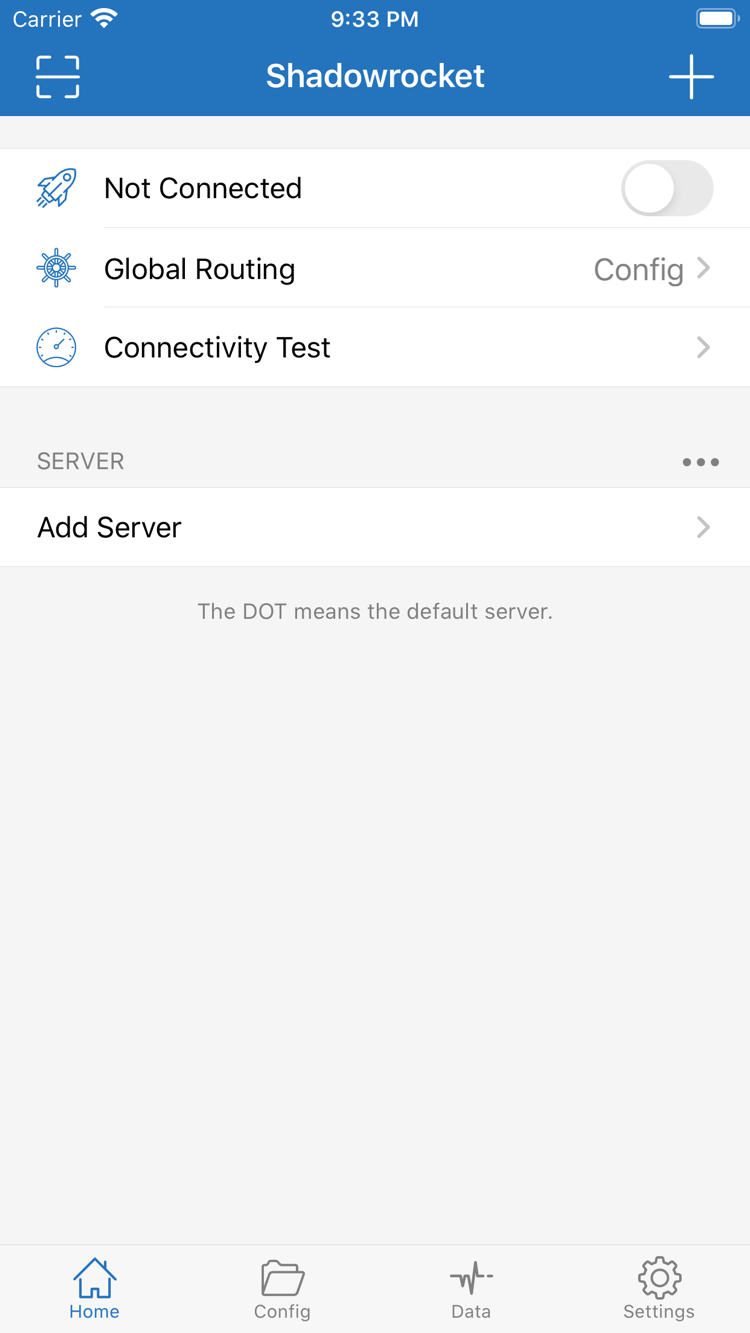
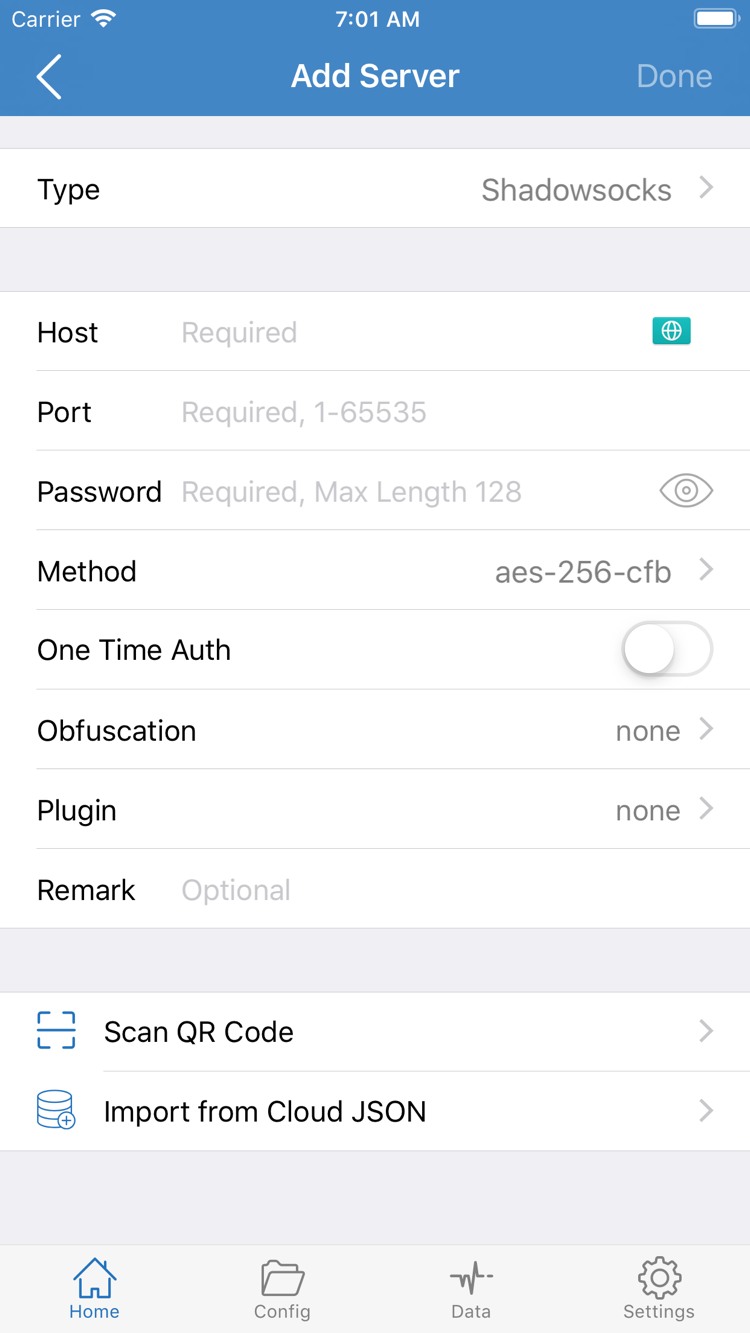
Interface reference after installation The image below helps locate controls in the iPhone / iPad version; verify the app using the product details above.
Home: Check connection status and locate Global Routing and Add Server here.Add Server: Choose Type first, then fill in the relevant fields using your own server details.
When first opened, seeing Not Connected on Home does not mean installation failed. You can check the SERVER group first, then open Add Server when you have your own server details. Fields change according to Type; you do not need to copy every item shown in the screenshot. For complete connection steps, see the first connection tutorial.
05 · Reinstallation and migration
Restore your purchase and configuration after changing devices
iPhone and iPad: restore the app first
Open the App Store, tap your account picture, go to Purchased, find Shadowrocket and tap the redownload button. Depending on the system version, purchased apps may appear under Apps or My Apps. A purchase made on iPhone can also be used on an iPad signed in with the same Apple ID. If the app is still available and the system is compatible, no second payment is required.
If the product page shows a purchase price instead of a redownload button, stop before confirming the purchase. Check the current purchasing account, Purchased or your purchase history, and the storefront region in turn. Being able to open the app on an old device only means it is installed; it does not confirm that the account currently signed in on the new device has that purchase record.
All platforms: check your own configuration next
Purchase history helps restore the app, not server information. Before changing devices, keep any existing subscription address, required parameters for manually entered servers and custom Config in a secure place you control. Do not post configuration files containing passwords or subscription links with credentials on public pages. After installing on the new device, import what you need and confirm that the intended configuration is active.
When moving to a new Mac, Windows, Android or Linux device, return to Download for all platforms and download the installer again for the new device's system and architecture. After importing, check the selected server on Home and verify the connection. You can remove the old device after confirming the new one works, so the original configuration remains available while troubleshooting.
06 · Client pricing
Two pricing tiers and purchase coverage
iPhone / iPad
One-time $2.99 purchase in the US App Store, with no monthly client fee. One purchase covers iPhone and iPad under the same Apple ID. Other storefronts show local currency; the amount charged is determined by the relevant App Store page.
Mac / Windows / Android / Linux
The client is free, and downloading it does not require an iPhone or iPad purchase. Choose Mac by Apple Silicon or Intel, and choose other systems by the architecture or format listed on their platform cards. Use this site's download links for installation and updates.
A one-time client purchase is not a connection plan. This site does not provide, sell or recommend servers or subscriptions. Whichever client tier you use, proxy connections require importing your own existing subscription or entering your own server details. Changing devices or reinstalling does not automatically renew any service you already have.
07 · Download and installation Q&A
FAQ
Can I use Shadowrocket on a computer or Android phone?
Yes. Mac, Windows, Android and Linux versions are free. Choose an installer on this page that matches your system and architecture. The iPhone / iPad version is a one-time $2.99 App Store purchase.
Should I choose the Apple Silicon or Intel version for Mac?
Open About This Mac from the Apple menu. If Chip shows an Apple chip name, choose the Apple Silicon version. If Processor shows Intel, choose the Intel version. Both installers require macOS 12 or later.
What should I do if Windows shows a SmartScreen warning?
First confirm that the file came from the Windows download button on this page, and distinguish a SmartScreen reputation warning from a threat report by security software. Only consider selecting More info → Run anyway if the source is confirmed, device policy allows it, and there is no threat report.
Why can't I find Shadowrocket in the App Store?
Open the App Store product link on this page, then check the country or region for the Apple ID used with Media & Purchases. Shadowrocket is not available in the mainland China store. Check the system's listed requirements to see whether changing the account region is possible.
Do I have to pay again after changing iPhones or reinstalling?
Sign in with the Apple ID used for the original purchase and find Shadowrocket, if still available, in the App Store's Purchased list to download it again. No second purchase is needed. Purchase history and server information are separate; check your configuration after reinstalling.
If I bought it on iPhone, can I install it on iPad too?
Yes. iPhone and iPad use the same purchase under one Apple ID. Check Purchased in the iPad App Store or open the same product page. Refer to the App Store page for system requirements.
Already installed the app? Continue with the user manual for first launch, Global Routing, connection checks and routine updates.