Shadowrocket · Official Manual
Shadowrocket Setup Guide
Add a server or subscription, choose Global Routing, then test the connection and routing results.
01 / Server
Add a server or import a subscription
First identify the details you have. If you have a protocol, address, port, and authentication information, add the server manually. If a service provider gave you a subscription link to sync a server list, use Subscribe. A link that opens in a browser is not necessarily a subscription URL: if it opens an account sign-in page or service information page, check the link type with your provider.
Have server details: use Add Server
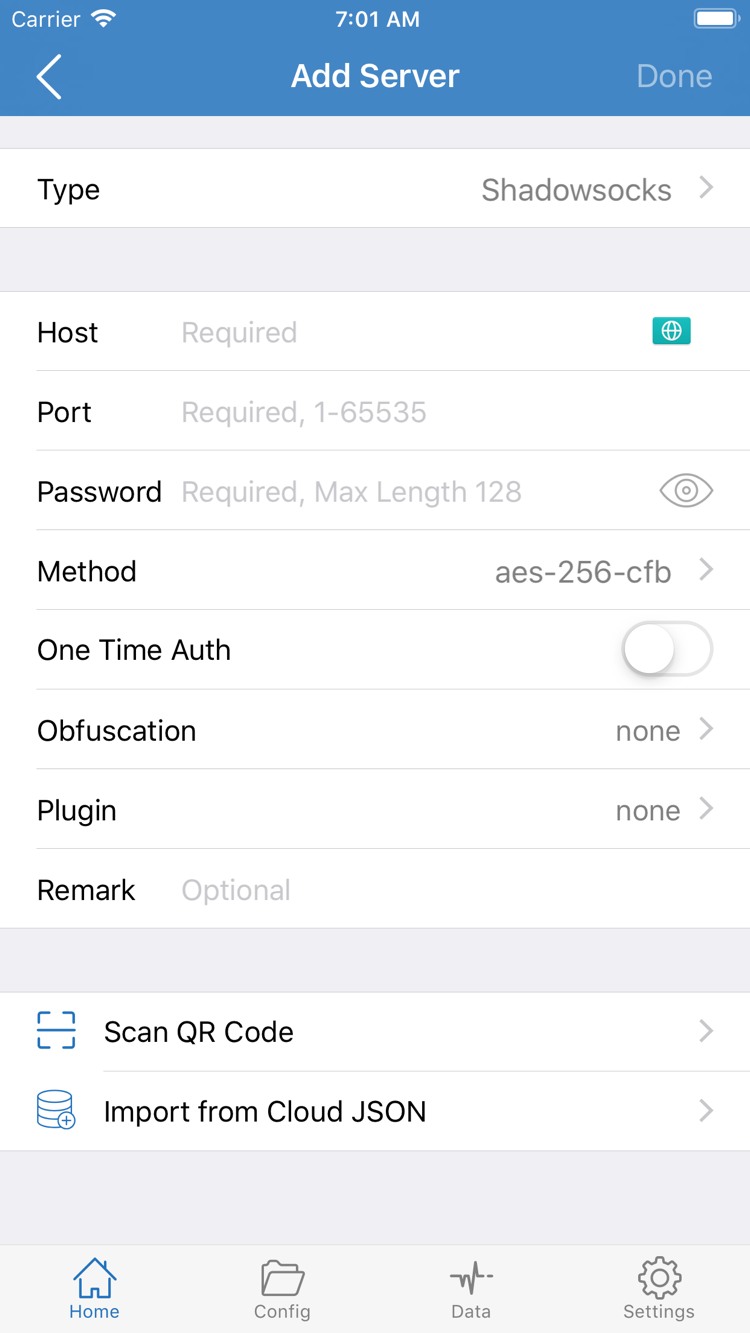
Open Home and find Add Server in the SERVER group. Tap Type and select the protocol specified in your details, then fill in the fields shown. Enter the server hostname or address in Host and the port separately; do not put both the address and port in Host. Whether Password, Method, and other fields appear depends on the Type. Follow the details you have and do not reuse parameters from another protocol.
If you have a QR code for a single server, use Scan QR Code at the bottom of Add Server, then check the detected protocol, name, and address. Import from Cloud JSON has a separate import purpose; do not use it instead of Subscribe. Before saving, check that copied text has no extra spaces or line breaks at either end. If the server details include parameters, do not remove any of them.
Have a subscription link: use Subscribe
In Add Server, open Type, select Subscribe, enter the complete subscription link in the address field, and save. Return to Home and wait for the list to update. If only the subscription source appears without any server entries, first check the subscription update result. A subscription URL may contain access credentials; do not post the full link publicly or share a screenshot that includes the address field or QR code.
This step is complete when at least one selectable server entry appears in the SERVER group on Home. Seeing an entry means the details have been added to the client; it does not confirm that the server can connect. Next, set how traffic should be handled, then test the connection.
02 / Routing
Choose a Global Routing mode
Find Global Routing in Home and tap it to see the three options. Before choosing a mode, decide what you want to test: for everyday use, you usually need to check whether a rule is working; when connecting a server for the first time, you may only need to confirm that it can reach a destination. These goals do not require the same mode.
- Config
- Processes requests according to the rules in the active configuration. Use it to route different destinations through PROXY, DIRECT, or REJECT. Results depend on the active configuration and the order of its rules.
- Proxy
- Routes traffic through the selected server. It can help verify the proxy route during the first connection, without mixing up rule selection and server connectivity. Switch back to your usual mode after testing.
- Direct
- Traffic bypasses the selected proxy server. Use it for comparison on the same network; a page opening successfully does not show that the proxy server is working.
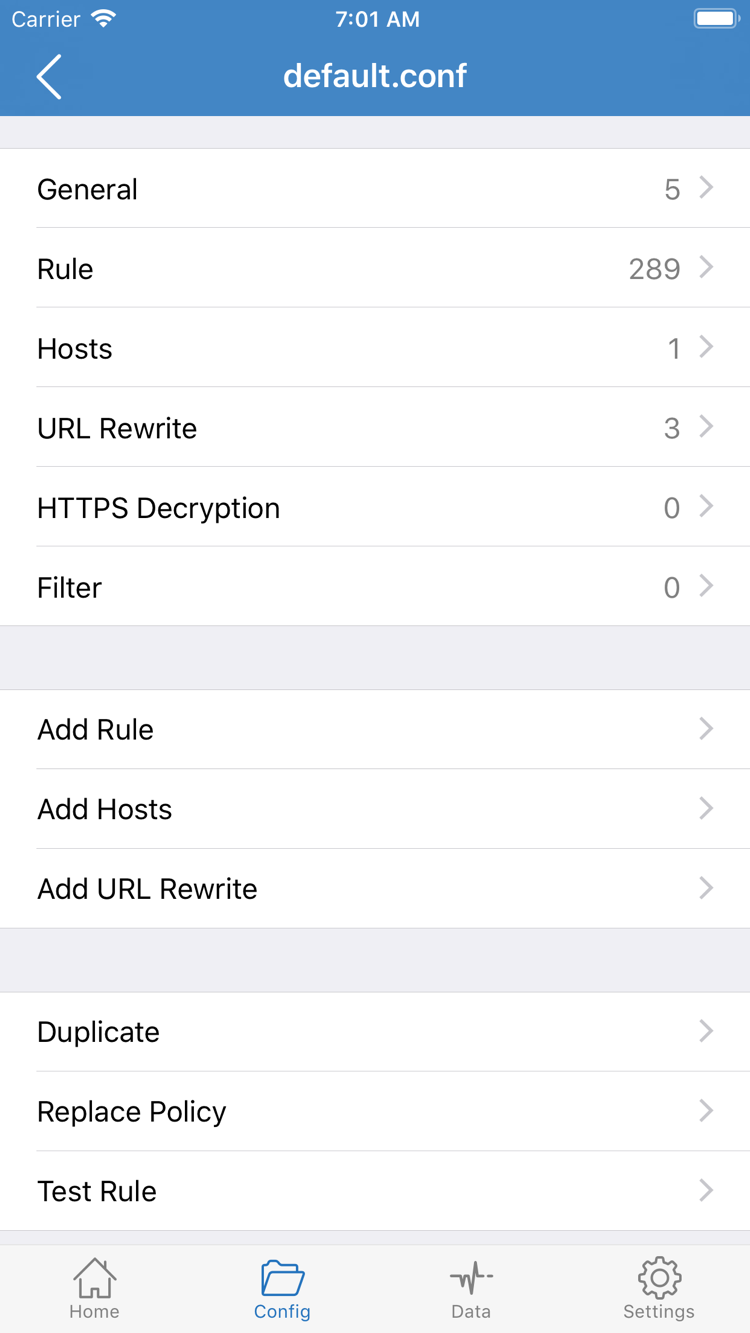
If you choose Config, also open the Config page at the bottom and confirm which file is enabled. Config in Home means that traffic is handled according to rules; Config at the bottom opens and edits configuration files. They are not the same control. The image on the right shows the file editor, where you can find Rule and Add Rule; it is not the Global Routing mode menu.
For a first test, use your existing configuration. There is no need to add rules, change DNS, and switch servers all at once. If a destination does not follow the expected route, check Rule: the first matching applicable rule usually determines the policy, while FINAL handles requests that do not match an earlier rule. A broad condition placed first can prevent more specific rules from taking effect. Keep a copy of the original configuration so you can restore it. For more rule examples, see the complete manual.
03 / Connection
Connect from Home
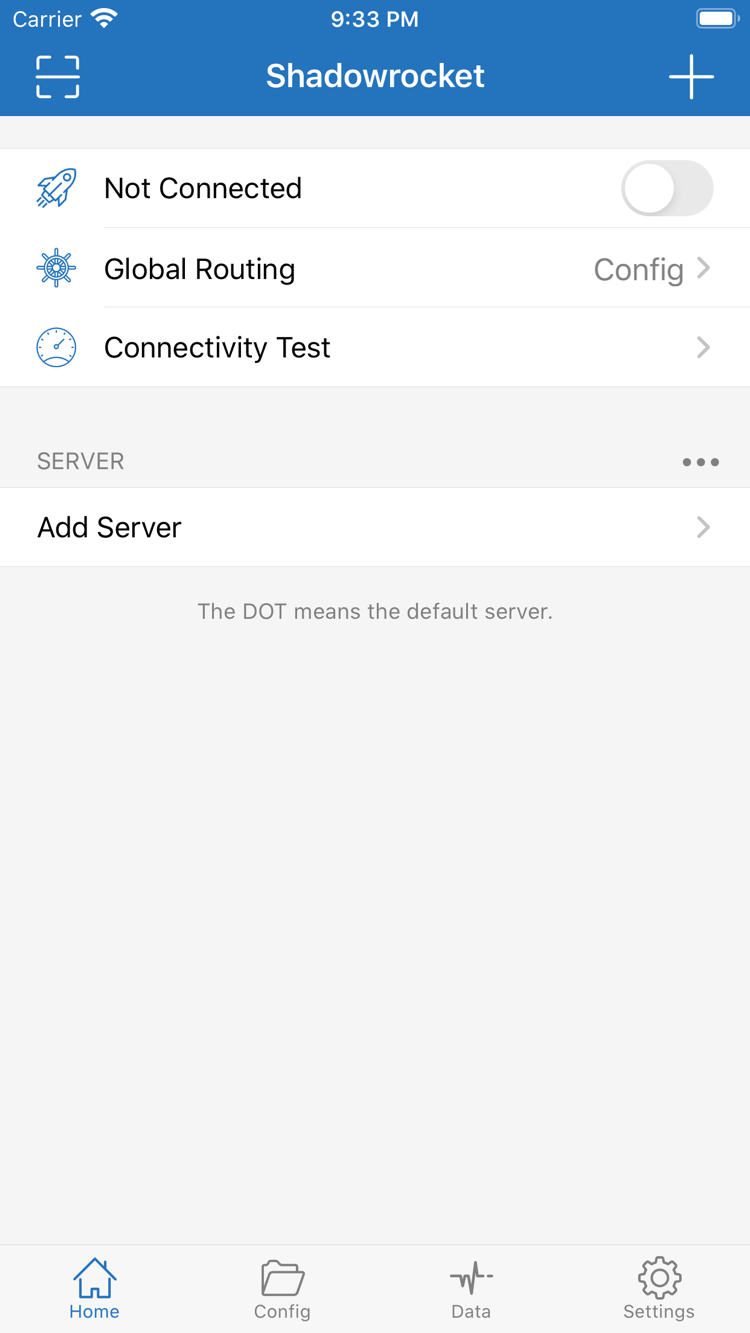
Return to Home, select the server entry you want to test in the SERVER group, and confirm that Global Routing shows the mode you just chose. A subscription may add several entries with similar names. For the first test, stick to one entry; otherwise, it can be difficult to tell which change caused a different result after switching networks or modes.
After confirming both, turn on the switch next to Not Connected at the top of Home. When enabled for the first time, the system may ask to add a VPN configuration. This allows the system to let Shadowrocket handle the relevant network traffic. Confirm that the prompt comes from the Shadowrocket you just opened, then authorize it as instructed by the system. Return to Home and wait for the switch status to settle. If you dismissed the prompt, try connecting again from Home.
If the switch immediately returns to the disconnected state, note the message on screen and do not keep tapping the switch. If another VPN configuration is running on the device, or the device is managed by an organization, check for a connection conflict or system policy restriction. Do not remove configurations installed by your organization for testing; ask the device administrator about authorization issues on managed devices.
Connected on Home only means that the client has started the system channel required for a connection. It does not mean a particular website is using PROXY. Keep the current server and network for the next step, then check the server test result and actual browsing result separately.
04 / Verification
Verify the connection and routing rules
Test the server before opening a destination
Stay on the same Wi-Fi or Cellular network, run Connectivity Test on Home, and check whether the selected server returns a result. If the test fails, note whether it timed out or showed another message; do not delete an entry based on a single result. A successful test only means the current test method received a response. It does not confirm that every website, app, or protocol is available.
Next, reload a familiar webpage in your browser that you can use to confirm normal access. Do not rely on a tab that was already open before connecting: a cached page or an existing connection may remain visible. Open a new tab, refresh it, and check that the page content has actually loaded again.
Check Config routing with two destinations
If Config is selected, choose two familiar destinations from your current rules: one expected to use PROXY and another expected to use DIRECT. Start a fresh visit to each, and compare the requested domain and actual policy in Diagnostics when the interface provides a corresponding record. If both pages open, that only confirms that they are accessible; check policy records to see whether they used different routes. Watch for domain redirects, and do not mistake requests for images or other page resources for requests to the main page.
To distinguish server issues from rule issues, temporarily switch to Proxy and test the same destination, keeping the server, network, and destination unchanged. If it works in Proxy but fails in Config, first check the active configuration file and rule match. If both modes fail, recheck the server details and network. Use Direct as a comparison if you need to confirm basic network access. Restore your usual mode after testing.
You can also open Data and compare traffic before and after access. This helps check whether traffic passed through the client, but an increase in traffic alone does not prove that a particular rule matched. Note the mode, selected server, and result during the test so you can reproduce the same conditions if an issue occurs.
05 / Diagnostics
Troubleshoot based on the failure
Start with the earliest step that failed. If no selectable server appears in the list, address the import first. If a server is selected but the switch will not turn on, check system authorization. Only after a connection is established do you need to use web access and rule records to check routing.
Subscription saved, but no selectable entry in SERVER
Return to the subscription entry and check that the URL is complete, especially any query parameters that may be missed during copying. Confirm that the link is provided by your own service provider for use in a client, not a sign-in page link. If an existing configuration works, keep it; do not delete the entire configuration to address a single failed update. If the same subscription repeatedly returns empty content or an update error, note the error and ask your provider whether the URL is still valid.
Connection will not start or disconnects immediately
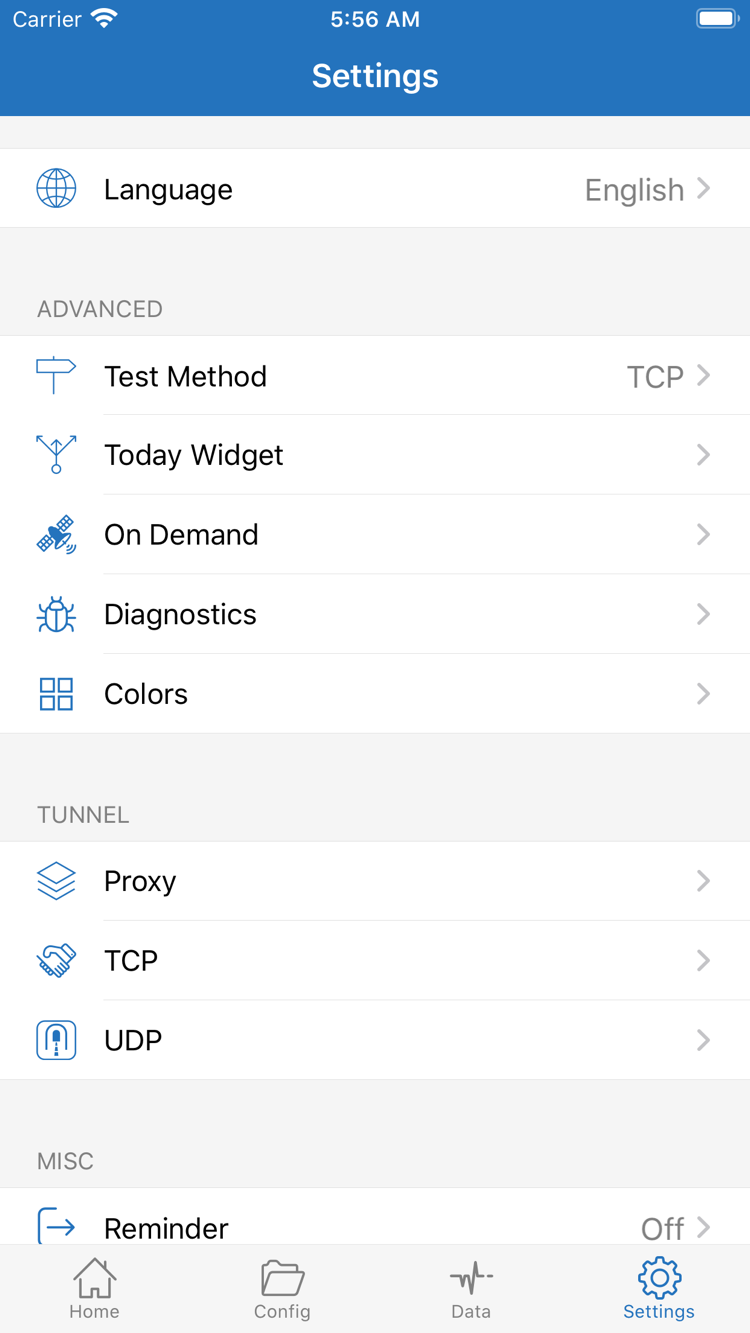
First check whether you handled the VPN configuration prompt on the first connection. Then confirm that the current network can access a familiar direct-access site when Shadowrocket is disconnected. If Wi-Fi requires sign-in, complete that step as required by the network, then test again from Home. If the connection starts automatically some time after you disconnect manually, check whether On Demand is enabled in Settings and review its trigger conditions. Automatic reconnection and failure to connect manually are different symptoms and should be assessed separately.
Connected, but tests or webpages fail
First compare Type, Host, Port, and authentication fields, then run Connectivity Test again using the same option. Check Test Method in Settings and note the current method; results from different methods are not directly comparable. If the test succeeds but only some domains fail, use Diagnostics to distinguish a domain resolution issue from a policy match issue. For a resolution error, check the DNS settings in the active configuration. If a request matches an unexpected policy, return to Config and check Rule and FINAL. Do not change DNS and rules at the same time.
Change one item at a time and retest using the same destination. If the cause is still unclear, look up the symptom in the FAQ. To keep a troubleshooting record, note the device type, connection method, mode, and error message; first hide server addresses, authentication details, subscription links, and QR codes.