Check the product page, not just the search result
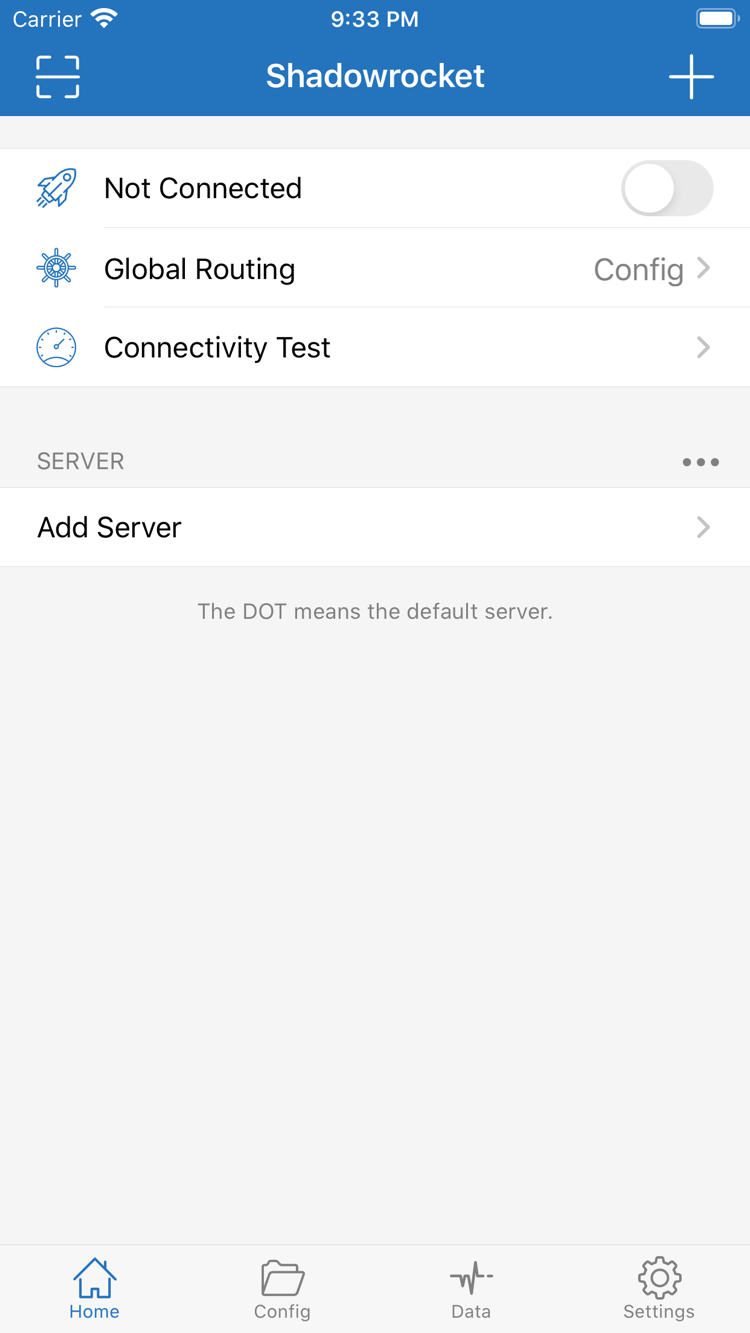
Open the App Store product page from the download page. Check the developer name, confirm the icon matches the white-background icon with a blue-purple outline shown above, and verify that the app ID at the end of the product URL is 932747118. Search results can make names, abbreviations, and icons easy to confuse, so do not rely on the name alone. Check the price and device compatibility shown for your App Store storefront before deciding whether to purchase.
If you cannot find it, check your storefront and device compatibility
Which App Store listings you can see depends on the country or region of the Apple Account used for Media & Purchases. The interface language and device region format do not determine the storefront. If the product link says the app is unavailable in your region, check your account's storefront. If the page opens but you cannot install the app, check the compatibility notice first. See the App Store listing for iPhone / iPad system requirements.
Two ways to get the app and purchase coverage
The iPhone / iPad version costs $2.99 as a one-time purchase in the US App Store; prices in other storefronts are as shown on their product pages. The same purchase history can be used on eligible iPhone and iPad devices with the same purchasing account. The Mac (Apple Silicon and Intel), Windows, Android, and Linux versions are free; choose the appropriate package from this site's download page. Shadowrocket is a closed-source commercial app. Client downloads and server services are managed separately on each platform.
A one-time app purchase is not a service plan. Purchasing or downloading gets you the client only. This site does not provide, sell, or recommend servers, subscriptions, or invitation codes. Connect using your existing server details or a subscription from your service provider.
Restoring the app and migrating settings are separate tasks
When changing devices or reinstalling, use the original purchasing account in the App Store to find your purchases and download the app again from its listing. If it does not appear, check the signed-in account and storefront, then confirm that the app is available on your current device. After reinstalling, check separately whether your subscription, server details, and Config have migrated. Re-downloading the app does not automatically restore its settings.
Keep a working configuration before updating
Update the iPhone / iPad version through the App Store, using automatic updates if configured on your device. For Mac, Windows, Android, and Linux, return to this site's download page and select the latest package. Before upgrading, keep a copy of frequently used configurations and note the currently selected server. After updating, test a familiar site using the same mode, then check your custom rules. If you also updated a subscription that day, test the client update and subscription change separately when troubleshooting.