SHADOWROCKET · OFFICIAL MANUAL

Shadowrocket Guide

Cross-platform proxy client with rule-based routing: Get the iPhone / iPad version from the App Store for a one-time payment of $2.99. The Mac, Windows, Android, and Linux versions are free. Import your existing server and route traffic by rules.

Current version v2.2.92Free for Mac, Windows, Android, and Linux

  • 6platformsChoose a version by device
  • 2ways to get itApp Store and site downloads
  • $2.99One-time purchase · iPhone / iPad
  • FreeMac / Windows / Android / Linux
  • ID932747118App Store app ID
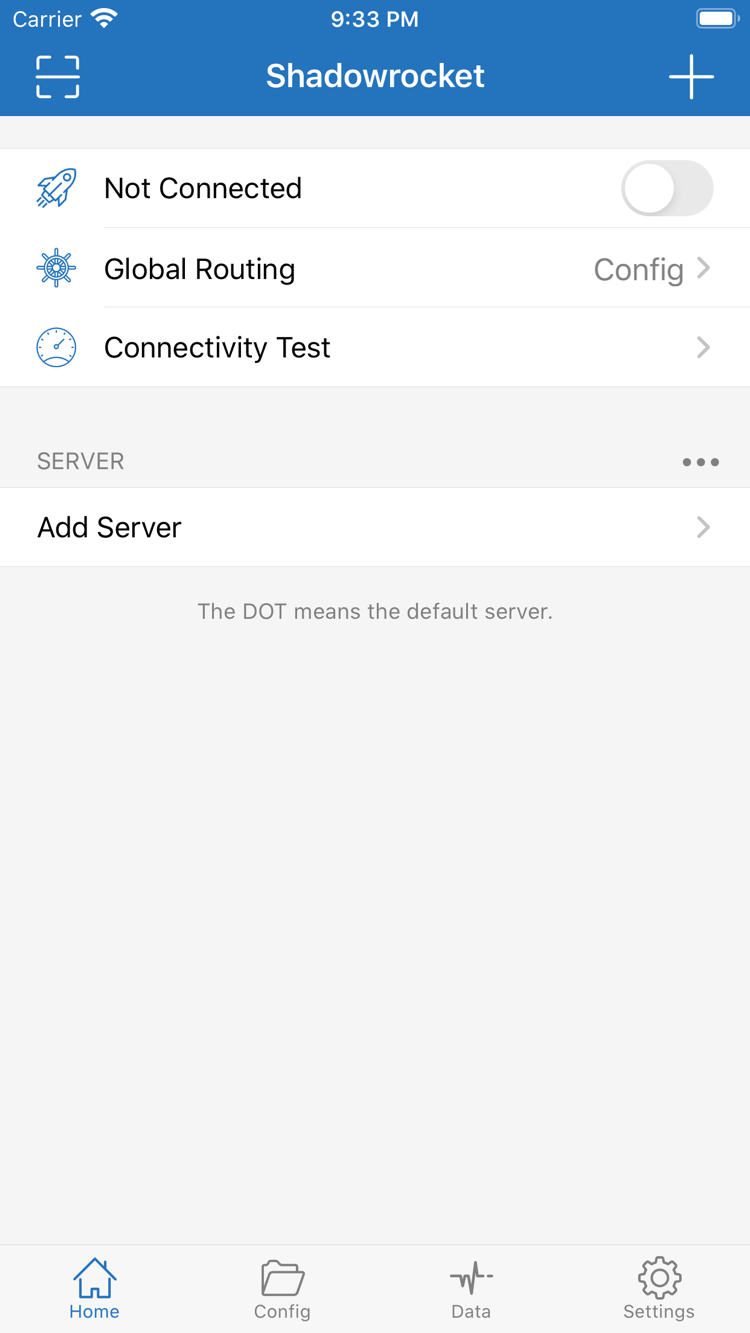
Shadowrocket Home screen

Configuration reference

Rules, protocols, and connection settings

The examples below use the iPhone / iPad interface. First, distinguish servers, routing modes, and configuration files: a server determines where traffic is forwarded, a mode determines whether rules route traffic, and a configuration file specifies the conditions and policies applied to requests. Changing one does not automatically replace the others.

Rule-based routing: DOMAIN-SUFFIX to FINAL

Open the current configuration in Config, then go to Rule to check the order. Requests are evaluated against rules from top to bottom; once a rule matches, its policy applies and evaluation stops. To add an exception for a specific site, put its rule before broader rules. FINAL determines what happens when no earlier condition matches. The example below sends the specified domain through PROXY and everything else through DIRECT; it demonstrates rule order only. Save a copy of the original configuration before editing, then test requests that should use the proxy and those that should connect directly.

DOMAIN-SUFFIX,example.com,PROXY
DOMAIN-KEYWORD,ads,REJECT
FINAL,DIRECT

On Demand connections

Connect manually from Home first, then check On Demand in Settings. Set connection conditions for Wi-Fi and Cellular based on how you use the device. Change one network condition at a time so you can identify which one triggers a connection. Test each network type separately and compare the connection status on Home. On Demand controls when a connection is attempted; after connecting, traffic is still governed by the current Global Routing mode. If you need to disconnect temporarily, also check whether an On Demand condition will reconnect automatically.

Settings → On Demand

Multiple protocols: check Type first

In Add Server, choose the Type that matches your existing server, then fill in the fields required by that protocol. Match Host and Port against the values provided by your service provider. Switching Type may change the authentication and encryption fields. Do not substitute a password, key, or encryption method from another protocol. After saving, select the server and use Connectivity Test to check reachability. If results differ across networks, note the test environment before deciding what to investigate.

  • Shadowsocks
  • VMess
  • VLESS
  • Trojan
  • HTTP / SOCKS5
  • WireGuard
  • Hysteria2

Manage subscriptions and configurations separately

If you have server parameters, add them individually. If your service provider supplies a subscription, choose Subscribe in Add Server and enter the complete URL. After updating the subscription, return to Home and confirm that the previously selected server is still available. Configuration files are managed separately in Config; updating the server list does not select a different set of rules. Before changing devices, check iCloud sync settings and keep a separate copy of any configuration you need to move. Afterward, confirm the server list, active configuration, and connection mode separately. Subscription URLs may contain access credentials, so do not post them publicly.

Add Server → Type → Subscribe

Troubleshooting and Data usage statistics

If you cannot connect, check the selected server on Home first, then use Connectivity Test as an initial comparison. A successful test only means that the probe received a response; it does not prove that every site is accessible. If only certain websites have problems, test the same address again on the same network and consider the current mode and rules. Data helps compare traffic recorded by the app; it is not the same as your service provider's usage totals or bill. Make sure both figures cover the same period before comparing them.

  • Home · Connectivity Test
  • Settings · Diagnostics
  • Data

Three Global Routing modes

Find Global Routing on Home. The comparison below is for reference only and does not change your device settings.

Config evaluates requests against the active configuration's rules, then applies the policy for the matching rule. It is suitable for everyday routing and for testing new rules. First check which configuration is active, then review the rule order and FINAL. If only a few sites should use the proxy, check whether those sites match the intended rules and whether unmatched traffic connects directly as expected.

Download guide

Get Shadowrocket for your device

The iPhone / iPad version is a one-time $2.99 App Store purchase; see the App Store listing for system requirements. The Mac, Windows, Android, and Linux versions are free, with installation packages available from this site's download page under /dl/shadowrocket/. Choose your device first, then check the processor architecture and package type.

If your system asks you to confirm installation, verify the download source, package name, and processor architecture first. On Mac, review the item in Privacy & Security; on Windows, read the SmartScreen prompt. On Android, grant installation permission only to the source you are using and revoke it afterward. For AppImage on Linux, grant execute permission to the file first. If a prompt is unexpected, stop the installation and check the download page.

First connection

Three steps: import, connect, and test

The following example uses iPhone / iPad. Before you begin, prepare your server details or a subscription URL from your service provider. Make sure the device can access websites before enabling the connection.

  1. Add Server: enter existing details

    If you have one server, select its Type based on the protocol provided by your service provider, then enter the corresponding Host, Port, and authentication fields. If you have a subscription URL, select Subscribe and make sure you copy the complete URL, not the provider's sign-in page. After saving, return to Home, check the imported server in the SERVER list, and select the one you want to test. If a subscription update fails, check for a missing character or an expired URL first. If the existing list still works, you do not need to delete it just to retry.

  2. Global Routing: choose a mode

    For everyday use, select Config so the configuration file determines how requests are routed. For your first test, decide what you want to check: use Proxy briefly to see whether the server can forward traffic, or switch back to Config to verify that rules work as expected. Confirm that the active configuration is the one you just reviewed. Keep a copy of the original configuration so you can restore the last working state if results are unexpected.

  3. Home: connect and test

    Turn on the connection. When the system prompts you for the first time, verify the app name before following the instructions to allow a VPN configuration. Once the status changes, run Connectivity Test as an initial check, then visit one site expected to use the proxy and one expected to connect directly. After changing a server, rule, or network, repeat the same tests and note which change affected the result. If all sites have problems, first compare with the device's underlying network while disconnected, then decide whether to investigate the server or configuration.

View the full tutorial

Product verification

Developer, app ID, and purchase history

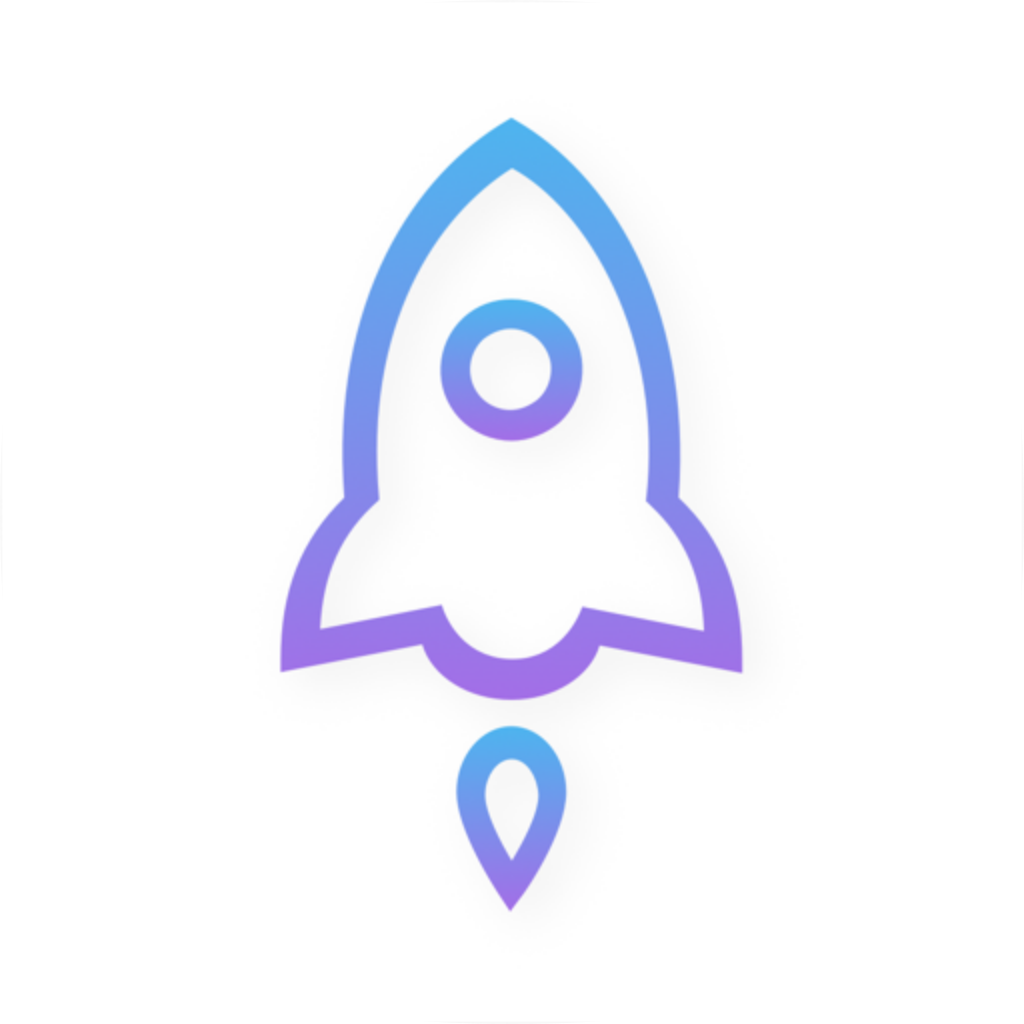
Official Shadowrocket icon
App Store developer
Shadow Launch Technology Limited
App Store app ID
932747118

Check the product page, not just the search result

Open the App Store product page from the download page. Check the developer name, confirm the icon matches the white-background icon with a blue-purple outline shown above, and verify that the app ID at the end of the product URL is 932747118. Search results can make names, abbreviations, and icons easy to confuse, so do not rely on the name alone. Check the price and device compatibility shown for your App Store storefront before deciding whether to purchase.

If you cannot find it, check your storefront and device compatibility

Which App Store listings you can see depends on the country or region of the Apple Account used for Media & Purchases. The interface language and device region format do not determine the storefront. If the product link says the app is unavailable in your region, check your account's storefront. If the page opens but you cannot install the app, check the compatibility notice first. See the App Store listing for iPhone / iPad system requirements.

Two ways to get the app and purchase coverage

The iPhone / iPad version costs $2.99 as a one-time purchase in the US App Store; prices in other storefronts are as shown on their product pages. The same purchase history can be used on eligible iPhone and iPad devices with the same purchasing account. The Mac (Apple Silicon and Intel), Windows, Android, and Linux versions are free; choose the appropriate package from this site's download page. Shadowrocket is a closed-source commercial app. Client downloads and server services are managed separately on each platform.

A one-time app purchase is not a service plan. Purchasing or downloading gets you the client only. This site does not provide, sell, or recommend servers, subscriptions, or invitation codes. Connect using your existing server details or a subscription from your service provider.

Restoring the app and migrating settings are separate tasks

When changing devices or reinstalling, use the original purchasing account in the App Store to find your purchases and download the app again from its listing. If it does not appear, check the signed-in account and storefront, then confirm that the app is available on your current device. After reinstalling, check separately whether your subscription, server details, and Config have migrated. Re-downloading the app does not automatically restore its settings.

Keep a working configuration before updating

Update the iPhone / iPad version through the App Store, using automatic updates if configured on your device. For Mac, Windows, Android, and Linux, return to this site's download page and select the latest package. Before upgrading, keep a copy of frequently used configurations and note the currently selected server. After updating, test a familiar site using the same mode, then check your custom rules. If you also updated a subscription that day, test the client update and subscription change separately when troubleshooting.
Common questions

The App Store says I purchased the app. Why is my server list empty?

A purchase record lets you download the app again; it does not mean a server has been imported. Follow the first-connection tutorial to check your subscription or migrated settings.

Why am I still using the old rules after a successful subscription update?

A subscription update refreshes the server list. To change routing rules, check the selected file in Config and the current Global Routing mode. See the user manual for details.

The connection is on. Why do only some websites fail to load?

First check on the same network whether only certain domains are affected, then compare the active rules with the expected policy. For more troubleshooting steps, see the FAQ.

Featured articles

Recent how-to notes

Choose an article based on the issue: check purchase history and interface differences when switching devices; review protocol types before adding a server; or follow the troubleshooting steps when connected but unable to access a site.